'%3e%3cpath%20fill='%23C0E1E2'%20d='M7%200H4v20h3V0Z'%20/%3e%3cpath%20fill='%23C0E1E2'%20d='M16%2010h-3v10h3V10Z'%20/%3e%3cpath%20fill='%23C0E1E2'%20d='M0%2013v3h20v-3H0Z'%20/%3e%3cpath%20fill='%23C0E1E2'%20d='M0%204v3h10V4H0Z'%20/%3e%3cpath%20fill='%2360B2B6'%20d='M19.996%204v3H13V0h3v4h3.996Z'%20/%3e%3c/g%3e%3cdefs%3e%3cclipPath%20id='clip0_1029_1800'%3e%3cpath%20fill='%23fff'%20d='M0%200h20v20H0z'%20/%3e%3c/clipPath%3e%3c/defs%3e%3c/svg%3e) Data Editor
Data Editor  Subscribe
SharePoint Graph API for Business Central
I would like to discuss working with the SharePoint API and explain why I decided to contribute a Graph API implementation to Business Central alongside the existing classic SharePoint REST API implementation. We will then look at practical examples of using the new SharePoint Graph API interfaces and legacy REST API interfaces.
Agenda
- Why do we need the SharePoint Graph interface?
- What is Microsoft Graph?
- SharePoint Graph Implementation in Business Central
- How to use SharePoint Interfaces in Business Central
- Summary
Why do we need the SharePoint Graph interface?
Business Central already provides interfaces for working with SharePoint through the classic REST API implementation. However, in practice this is now considered an outdated and less preferable way to work with SharePoint. Microsoft effectively refers to this as the legacy SharePoint REST API v1, and if you navigate to the documentation for SharePoint REST API v2, you are redirected to the SharePoint Graph API documentation.
Legacy SharePoint REST API v1 is, of course, the only option when working with on-premises SharePoint servers. Anyway, OnPremise SharePoint is out of scope of our discussion. In addition, this API implementation still offers more advanced file handling capabilities than Graph API, but the gap is closing rapidly. If your SharePoint server is hosted in the cloud, then Graph API is the natural choice. Microsoft invests almost no effort in the legacy SharePoint API, instead, these efforts are focused on Graph API.
Moreover, the legacy SharePoint API has a rather convoluted permissions model for application only context. The situation became slightly better when Microsoft announced the planned retirement of SharePoint Azure ACS app-only authentication. It is now no longer possible to configure permissions for each SharePoint site in XML format. Authentication can only be performed through Microsoft Entra ID, and permissions are managed in the same context, for example Sites.Read.All.
At the same time, I kept running into permission issues even when using Microsoft Entra ID with legacy SharePoint. For example, I have already mentioned that because of these problems I had to write my own implementation of the authentication logic in C#. In contrast, I have never encountered any permission or authentication issues when using the Graph API in general, even outside the SharePoint context.
The final reason is the usability of the legacy SharePoint API and its interfaces in Business Central. Just look at how complex this legacy API is. In my view, they are not particularly convenient to work with. We will also look at some concrete examples of how to use legacy BC interfaces.
To sum up, the main reasons why it makes sense to use the SharePoint Graph API instead of the legacy SharePoint REST API are:
- It is the current and recommended way to work with the SharePoint API from Microsoft
- Simpler permission and access management
- A cleaner, simpler API
- More convenient Business Central interfaces
What is Microsoft Graph?
Microsoft Graph is essentially a single unified REST API for accessing data and services across the entire Microsoft 365 ecosystem. Therefore, when I mentioned “Graph API” or “SharePoint Graph API”, I was referring to specific sections of Microsoft Graph. This is a very convenient concept: a single entry point for working with different resources, unified authentication, a unified permissions context, and so on.
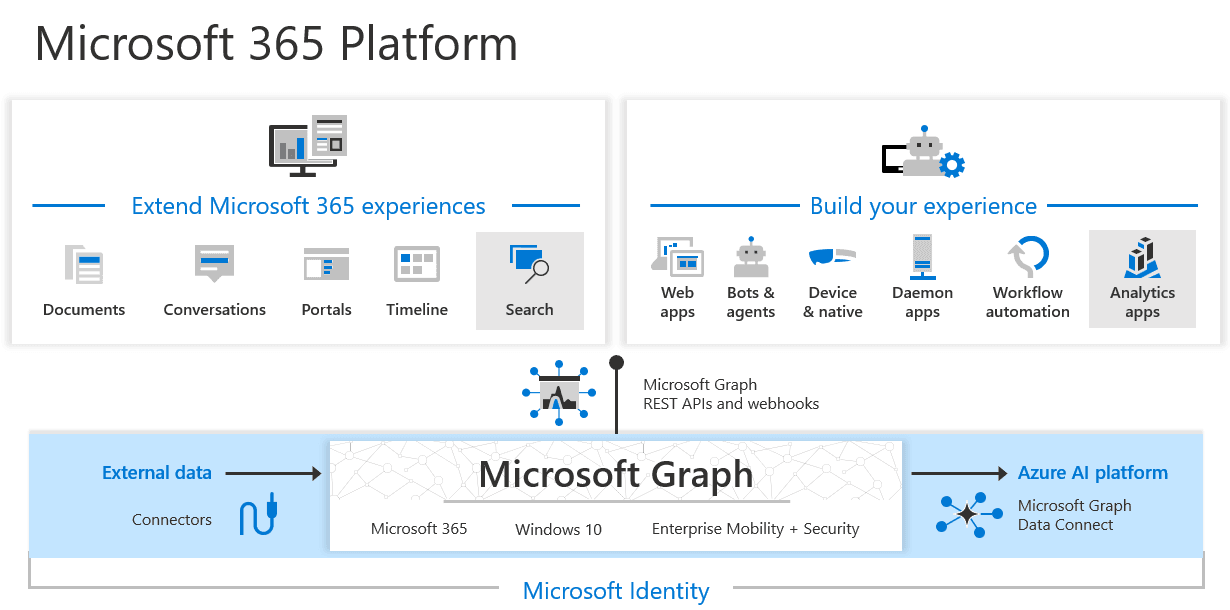
So, Microsoft Graph is good because:
- Single identity / auth model, everything uses Entra ID tokens (delegated or application scopes).
- Consistent REST + JSON, same style of URLs, query options ($filter, $select, $top, etc.) across services.
- Unified permissions, instead of “SharePoint permissions here, Outlook there”, you have Graph permissions like User.Read, Files.Read.All, Sites.Selected, Mail.Read, all managed in one place in Entra ID.
- Cross-service scenarios
- SDKs everywhere, official Graph SDKs for .NET, JS/TypeScript, Java, Python, etc.
But let's focus on the SharePoint section of Microsoft Graph in the context of Business Central.
SharePoint Graph Implementation in Business Central
Based on the above, I decided to implement a SharePoint interface in Business Central. To begin with, I created an issue to discuss this idea with the community and Microsoft. As a result, I received a large amount of valuable feedback during the discussion and implementation. For example, the System Application of Business Central already contains Microsoft Graph interfaces, and the author of this open-source contribution, Kilian Seizinger, suggested using this module. This was an excellent idea: instead of working directly with HTTP variables or the Rest Client module, I now had a convenient interface for working with Microsoft Graph. By the way, Rest Client is also an open-source contribution by Arend-Jan Kauffmann, an excellent module that I am using more and more often and highly recommend.
After that, I moved on to implementing the SharePoint integration through Microsoft Graph. In fact, it was quite a lot of work, especially given that I decided to add a significant number of automated tests. However, the result turned out quite good overall. This pull request is close to being finished, but you still have a chance to look it over and do a code review.
While working on this module, I also noticed that the Microsoft Graph BC interface did not have any pagination mechanism. In practice, this meant that we had no way to control paging and could easily receive an incomplete response from Microsoft Graph, because it applies default page size limits.
So I created an issue for this and also implemented a pagination mechanism in the Microsoft Graph module. It was released in BC 27. I would like to note that with changes of this scale, the most difficult part is often maintaining backward compatibility. You need to implement the logic in such a way that a module already used by someone does not break. This imposes certain constraints on the work and requires special attention.
How to use SharePoint Interfaces in Business Central
Now let's move on to practical examples of using the interfaces for working with SharePoint in Business Central. For comparison, I will show variants that use the classic legacy interface and the new Graph-based interface.
As example, we want to download the first file from the root folder of a specific SharePoint site.
Classic implementation:
local procedure LegacyDownloadFile()
var
  TempSharePointFile: Record "SharePoint File" temporary;
  TempSharePointList: Record "SharePoint List" temporary;
  TempSharePointFolder: Record "SharePoint Folder" temporary;
  SharePointAuth: Codeunit "SharePoint Auth.";
  LegacySharePointClient: Codeunit "SharePoint Client";
  SharePointAuthorization: Interface "SharePoint Authorization";
  ServerRelativeUrl: Text;
  ODataId: Text;
begin
  //Certificate is required for classic interface for no user interaction API calls
  SharePointAuthorization := SharePointAuth.CreateClientCredentials(TenantIdValue, ClientIdValue,
    CertificateAsBase64, CertPassword, 'https://{SharePointServerName}.sharepoint.com/.default');

  LegacySharePointClient.Initialize('https://{SharePointServerName}.sharepoint.com/sites/{SiteName}/', SharePointAuthorization);

  if not LegacySharePointClient.GetLists(TempSharePointList) then
    Error('Error: %1 - %2', LegacySharePointClient.GetDiagnostics().GetHttpStatusCode(),
      LegacySharePointClient.GetDiagnostics().GetResponseReasonPhrase());

  if not TempSharePointList.FindFirst() then
    Error('No document libraries found.');

  //Our root folder will be "Documents", but you don't know it before
  if TempSharePointList.FindSet() then
    repeat
      if confirm('Process with list %1?', false, TempSharePointList.Title) then begin
        ODataId := TempSharePointList.OdataId;
        break;
      end;
    until TempSharePointList.Next() = 0;

  //To get Root Folder of list we have to pass ODataId
  if not LegacySharePointClient.GetDocumentLibraryRootFolder(ODataId, TempSharePointFolder) then
    Error('Error: %1 - %2', LegacySharePointClient.GetDiagnostics().GetHttpStatusCode(),
      LegacySharePointClient.GetDiagnostics().GetResponseReasonPhrase());

  ServerRelativeUrl := TempSharePointFolder."Server Relative Url";

  if not LegacySharePointClient.GetFolderFilesByServerRelativeUrl(ServerRelativeUrl, TempSharePointFile) then
    Error('Error: %1 - %2', LegacySharePointClient.GetDiagnostics().GetHttpStatusCode(),
        LegacySharePointClient.GetDiagnostics().GetResponseReasonPhrase());

  if not TempSharePointFile.FindFirst() then
    Error('No files found to download.');

  if LegacySharePointClient.DownloadFileContent(TempSharePointFile.OdataId, TempSharePointFile.Name) then
    Message('File downloaded successfully: %1', TempSharePointFile.Name)
  else
    Error('Error: %1 - %2', LegacySharePointClient.GetDiagnostics().GetHttpStatusCode(),
      LegacySharePointClient.GetDiagnostics().GetResponseReasonPhrase());
end;
Microsoft Graph implementation:
local procedure GraphDownloadFile()
var
  TempGraphDriveItem: Record "SharePoint Graph Drive Item" temporary;
  TempBlob: Codeunit "Temp Blob";
  GraphAuthorization: Codeunit "Graph Authorization";
  SharePointGraphClient: Codeunit "SharePoint Graph Client";
  GraphAuthInterface: Interface "Graph Authorization";
  FileOutStream: OutStream;
  FileName: Text;
  FileInStream: InStream;
begin
  GraphAuthInterface := GraphAuthorization.CreateAuthorizationWithClientCredentials(
    TenantIdValue, ClientIdValue, ClientSecretValue,
    'https://graph.microsoft.com/.default');

  SharePointGraphClient.Initialize('https://{SharePointServerName}.sharepoint.com/sites/{SiteName}/', GraphAuthInterface);

  //Now we can get root folder of default drive from first request
  SharePointGraphResponse := SharePointGraphClient.GetRootItems(TempGraphDriveItem);
  if not SharePointGraphResponse.IsSuccessful() then
    Error(SharePointGraphResponse.GetError());

  //Get first file
  TempGraphDriveItem.SetRange(IsFolder, false);
  if not TempGraphDriveItem.FindFirst() then
    Error('No files found to download.');

  FileName := TempGraphDriveItem.Name;
  TempBlob.CreateOutStream(FileOutStream);

  SharePointGraphResponse := SharePointGraphClient.DownloadFile(TempGraphDriveItem.Id, TempBlob);
  if SharePointGraphResponse.IsSuccessful() then begin
    TempBlob.CreateInStream(FileInStream);
    if DownloadFromStream(FileInStream, 'Download', '', '', FileName) then
      Message('File downloaded successfully: %1', FileName);
  end else
    Error(SharePointGraphResponse.GetError());
end;
In my view, the new version is much more convenient and considerably simpler. Let's now look at another example of uploading a file to root folder.
Classic implementation:
local procedure LegacyUploadFile()
var
  TempSharePointFile: Record "SharePoint File" temporary;
  TempSharePointList: Record "SharePoint List" temporary;
  TempSharePointFolder: Record "SharePoint Folder" temporary;
  SharePointAuth: Codeunit "SharePoint Auth.";
  LegacySharePointClient: Codeunit "SharePoint Client";
  SharePointAuthorization: Interface "SharePoint Authorization";
  FileInStream: InStream;
  FileName: Text;
  ServerRelativeUrl: Text;
  ODataId: Text;
begin
  //Certificate is required for classic interface for no user interaction API calls
  SharePointAuthorization := SharePointAuth.CreateClientCredentials(TenantIdValue, ClientIdValue,
    CertificateAsBase64, CertPassword, 'https://{SharePointServerName}.sharepoint.com/.default');

  LegacySharePointClient.Initialize('https://{SharePointServerName}.sharepoint.com/sites/{SiteName}/', SharePointAuthorization);

  if not LegacySharePointClient.GetLists(TempSharePointList) then
    Error('Error: %1 - %2', LegacySharePointClient.GetDiagnostics().GetHttpStatusCode(),
      LegacySharePointClient.GetDiagnostics().GetResponseReasonPhrase());

  if not TempSharePointList.FindFirst() then
    Error('No document libraries found.');

  //Our root folder will be "Documents", but you don't know it before
  if TempSharePointList.FindSet() then
    repeat
      if confirm('Process with list %1?', false, TempSharePointList.Title) then begin
        ODataId := TempSharePointList.OdataId;
        break;
      end;
    until TempSharePointList.Next() = 0;

  //To get Root Folder of list we have to pass ODataId
  if not LegacySharePointClient.GetDocumentLibraryRootFolder(ODataId, TempSharePointFolder) then
    Error('Error: %1 - %2', LegacySharePointClient.GetDiagnostics().GetHttpStatusCode(),
      LegacySharePointClient.GetDiagnostics().GetResponseReasonPhrase());

  ServerRelativeUrl := TempSharePointFolder."Server Relative Url";

  if not UploadIntoStream('Select a file to upload', '', '', FileName, FileInStream) then
    exit;

  if LegacySharePointClient.AddFileToFolder(ServerRelativeUrl, FileName, FileInStream, TempSharePointFile, true) then
    Message('File uploaded successfully: %1', TempSharePointFile.Name)
  else
    Error('Error: %1 - %2', LegacySharePointClient.GetDiagnostics().GetHttpStatusCode(),
      LegacySharePointClient.GetDiagnostics().GetResponseReasonPhrase());
end;
Much simpler version of Graph SharePoint usage, we can pass empty FolderPath for root folder:
local procedure GraphUploadFile()
var
  TempGraphDriveItem: Record "SharePoint Graph Drive Item" temporary;
  GraphAuthorization: Codeunit "Graph Authorization";
  SharePointGraphClient: Codeunit "SharePoint Graph Client";
  GraphAuthInterface: Interface "Graph Authorization";
  FileName: Text;
  FileInStream: InStream;
begin
  GraphAuthInterface := GraphAuthorization.CreateAuthorizationWithClientCredentials(
    TenantIdValue, ClientIdValue, ClientSecretValue,
    'https://graph.microsoft.com/.default');

  SharePointGraphClient.Initialize('https://{SharePointServerName}.sharepoint.com/sites/{SiteName}/', GraphAuthInterface);

  if not UploadIntoStream('Select a file to upload', '', '', FileName, FileInStream) then
    exit;

  SharePointGraphResponse := SharePointGraphClient.UploadFile('', FileName, FileInStream, TempGraphDriveItem);
  if SharePointGraphResponse.IsSuccessful() then
    Message('File uploaded successfully: %1', FileName)
  else
    Error(SharePointGraphResponse.GetError());
end;
I believe these examples are sufficient to understand how to work with the SharePoint API in Business Central, both through the legacy API and through the new Graph API.
⚠️ Warning: Client Credentials and delegated admin accounts
When using BC's built-in Graph Client, SharePoint Graph Client, or CreateAuthorizationWithClientCredentials, Business Central injects the current user's identity into the JWT, even under the client credentials flow. If that user is a delegated admin, SharePoint Graph returns Unauthorized. The same code works under a regular user.
Workaround: sign-in with real user.
Summary
In this article I explain why, for Business Central integrations with SharePoint, it is time to move from the legacy SharePoint REST API to the Microsoft Graph-based SharePoint API. I compare both approaches, highlight how the classic implementation currently works, and show how much simpler the new Graph-based interfaces are for common tasks such as downloading and uploading files.
I describe how I implemented a new SharePoint Graph client on top of the existing Microsoft Graph interfaces in the System Application, added pagination support, and covered the changes with automated tests to preserve backward compatibility.
After walking through practical code examples, I summarize the main advantages of Graph API: it is the modern and recommended approach from Microsoft, it offers a unified authentication and permissions model, and it provides cleaner, more convenient interfaces for Business Central developers.