'%3e%3cpath%20fill='%23C0E1E2'%20d='M7%200H4v20h3V0Z'%20/%3e%3cpath%20fill='%23C0E1E2'%20d='M16%2010h-3v10h3V10Z'%20/%3e%3cpath%20fill='%23C0E1E2'%20d='M0%2013v3h20v-3H0Z'%20/%3e%3cpath%20fill='%23C0E1E2'%20d='M0%204v3h10V4H0Z'%20/%3e%3cpath%20fill='%2360B2B6'%20d='M19.996%204v3H13V0h3v4h3.996Z'%20/%3e%3c/g%3e%3cdefs%3e%3cclipPath%20id='clip0_1029_1800'%3e%3cpath%20fill='%23fff'%20d='M0%200h20v20H0z'%20/%3e%3c/clipPath%3e%3c/defs%3e%3c/svg%3e) Data Editor
Data Editor  Subscribe
CLI Agents Part 4: Practical Use
Continuing the series on AI agents in the terminal, I want to move on to more realistic, practical examples. The goal of this article is to show that working with AI agents can be simple and approachable. I will demonstrate this through solving real task for Business Central in Microsoft repository.
The goal of this article is not to fully automate development processes, and your experience may differ from mine. This is just one possible variation of practical usage and my personal opinion.
- CLI Agents: The New Standard of AI Coding
- CLI Agents Part 2: Claude Code Best Practices
- CLI Agents Part 3: Business Central MCP Server
- CLI Agents Part 4: Practical Use
Agenda
- Introduction
- Prerequisites
- Task
- Planning
- Implementation
- Automated testing
- Code Review
- Manual testing
- Continue implementation
- Documentation
- Summary
- Source Code
Introduction
In my work, I use AI agents constantly, and most of my code is now generated by LLMs. However, I have my own view on automation. I prefer to carefully review every line of code and thoroughly examine what has been created. I strongly believe that a maintainable and easy-to-read project requires careful human review and cannot simply be “vibe-coded.”
I also believe that developers can now focus more on architecture and engineering tasks. We can delegate the “boring” parts of our work to an agent and use the freed-up time for our own learning and for maintaining the quality of the project.
I still write code, and I still read code, because I enjoy it and because it helps me maintain my code reading and writing skills.
The greatest value of this technology comes from its symbiosis with human intelligence.
I have also noticed that a large number of developers still avoid using LLMs in their work for many different reasons. One of those reasons is a lack of understanding of how to work with LLM agents and what value they can bring.
My goal today is to show, in practice, how an LLM agent can be used and what benefits it can provide.
Prerequisites
Before we begin, we need to make sure that all the required tools are installed and configured. In this section, I will describe what I have installed and why.
VS Code is the main IDE I use when I need to do something manually. It is also simply a convenient editor for reviewing what the LLM agent has done. I also use the following VS Code extensions:
- AL Language to provide formatters, linters and LSP for Business Central development.
- Useful support extensions for AL to have better AL coding experience.
- Markdown Preview to review markdown files.
Claude Code is the AI agent I personally prefer over the others. In your case, it could be Codex, Copilot CLI, Open Code, etc. This is the foundation for working with an LLM.
In addition, I use the following extra tools in Claude Code:
- AL LSP, I use Torben’s version, but quite recently Microsoft released its own implementation as well. This is what allows the agent to better understand the codebase, dependencies, and linters.
- Microsoft Learn MCP, this MCP allows the agent to efficiently search for information in Microsoft Learn documentation.
- AL Development Tools package, this package contains the AL .NET Tool, which enables easy access to common AL Development Tools for pipelines and automates processes through terminal.
Since my task will be to implement additional functionality in the System Application module for Dynamics 365 Business Central, I also use two agent Skills. They significantly improve the feedback loop between the agent and the task. They can be invoked directly with a command, or simply based on the context of your request to the agent, as I mentioned in previous posts. By the way, these Skills were also created with the help of Claude Code, which we will discuss later.
- Compile System App, skill and script to run a container-less compile of the System Application AL-Go projects via
build\scripts\DevEnv\NewDevEnv.psm1Build-Apps function. It uses aCompilerFolder(BC artifacts in the package cache), so no Docker container is created or required. - Run Tests, skill and script to run specific test codeunits against a running BC container via
Run-TestsInBcContainer.
Additionally, BCQuality specific knowledge base for Business Central, I will use it for code review.
And of course, we will need a Docker container with Dynamics 365 Business Central. For that, we will use the scripts from the BCApps repository.
.\build\scripts\DevEnv\NewDevEnv.ps1 -ContainerName bcserver -AlGoProject "build\projects\System Application"
Now we are ready to move directly to discussing and implementing the task.
Task
Earlier, I implemented support for the SharePoint Graph API in Business Central. It was a fairly large task that required a lot of time and effort from me. During the implementation of this module, I missed a few things. More specifically:
- The Test Library mock handler did not support multi-step operations. Some methods contain several consecutive API calls. For example,
CopyItemByPath()first needs to make aGETrequest to retrieve the IDs of the source and target drive items, and only then perform the actual copy operation. In practice, this means three API calls within a single method. Therefore, support for multi-step operations needs to be added. - A method for renaming files and folders and updating their properties after creation was missing.
- A method for modifying existing list item fields was missing. Currently, only creation is supported, but updating metadata is one of the most common SharePoint integration scenarios.
Therefore, I decided to combine the implementation itself with writing this post.
This way, I will not only be able to extend the SharePoint Graph API module, but also share a practical example of using an AI agent.
Planning
I recommend starting large tasks with a planning stage. Of course, each of these points could be handled as a separate task. However, I intentionally want to simulate a larger task to show how to work with this kind of scenario.
So, first, we navigate to the BCApps repository folder in your local clone of repository and initialize Claude Code:
cd "C:\Users\Drakonian\Documents\AL\BCApps\"
claude
Next, I write a prompt where I describe the essence of the task, include links to documentation, links to specific places in the code, and so on.
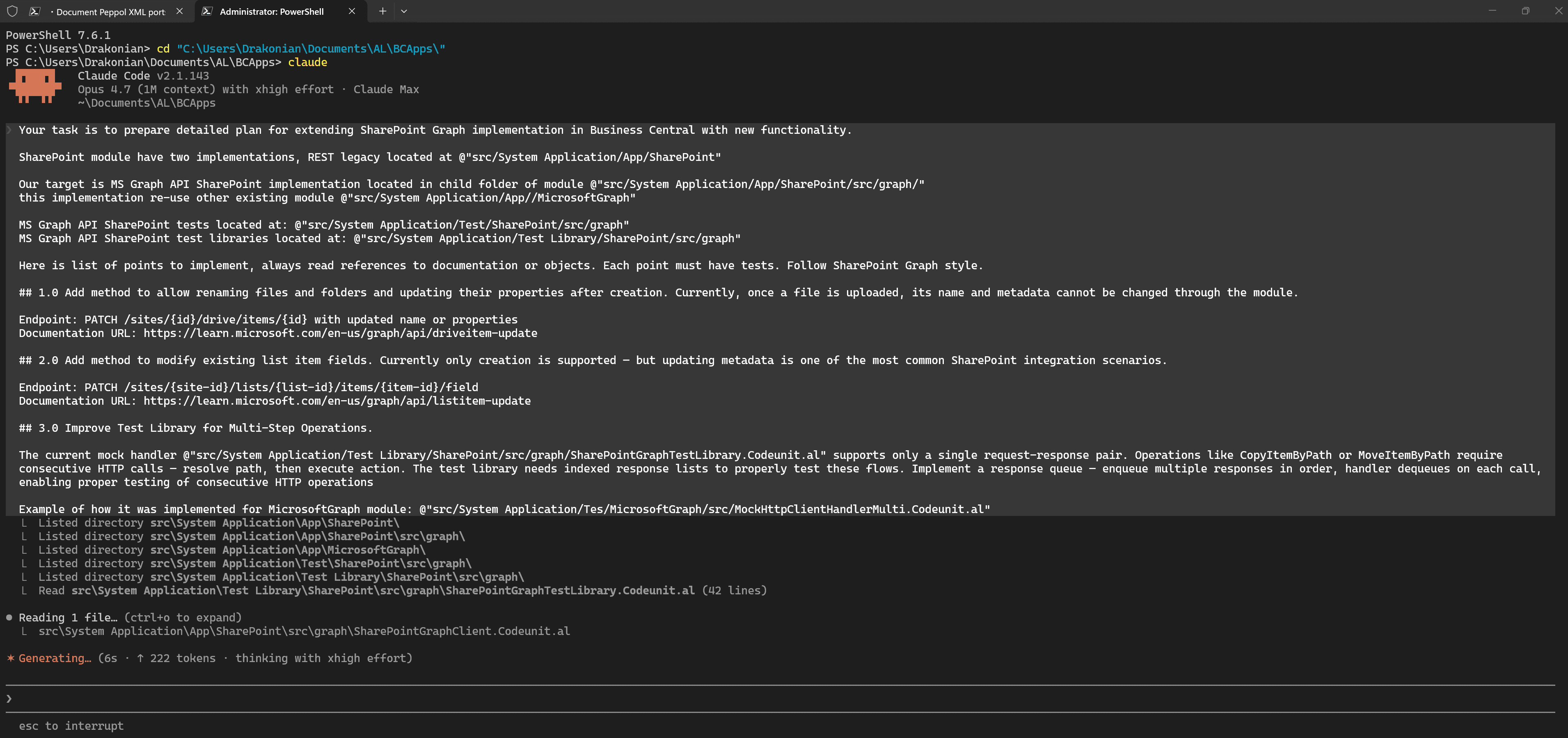
I would like to draw your attention to a few points:
- The prompt is short and written in a simple and specific way.
- The prompt refers to specific objects in the codebase using
@. This context is needed so the agent can build the necessary connections. - The prompt refers to the existing implementation.
- The prompt refers to examples that are not directly related to the task, but give an idea of how one part of the task could be solved.
- The prompt contains links to documentation.
This may not be the best prompt, but it gives a general idea of the principles and approaches that can be used when creating prompts.
Your task is to prepare detailed plan for extending SharePoint Graph implementation in Business Central with new functionality.

SharePoint module have two implementations, REST legacy located at @"src/System Application/App/SharePoint"

Our target is MS Graph API SharePoint implementation located in child folder of module @"src/System Application/App/SharePoint/src/graph/"
this implementation re-use other existing module @"src/System Application/App//MicrosoftGraph"

MS Graph API SharePoint tests located at: @"src/System Application/Test/SharePoint/src/graph"
MS Graph API SharePoint test libraries located at: @"src/System Application/Test Library/SharePoint/src/graph"

Here is list of points to implement, always read references to documentation or objects. Each point must have tests. Follow SharePoint Graph style.

## 1.0 Add method to allow renaming files and folders and updating their properties after creation. Currently, once a file is uploaded, its name and metadata cannot be changed through the module.

Endpoint: PATCH /sites/{id}/drive/items/{id} with updated name or properties
Documentation URL: https://learn.microsoft.com/en-us/graph/api/driveitem-update

## 2.0 Add method to modify existing list item fields. Currently only creation is supported — but updating metadata is one of the most common SharePoint integration scenarios.

Endpoint: PATCH /sites/{site-id}/lists/{list-id}/items/{item-id}/field
Documentation URL: https://learn.microsoft.com/en-us/graph/api/listitem-update

## 3.0 Improve Test Library for Multi-Step Operations.

The current mock handler @"src/System Application/Test Library/SharePoint/src/graph/SharePointGraphTestLibrary.Codeunit.al" supports only a single request-response pair. Operations like CopyItemByPath or MoveItemByPath require consecutive HTTP calls — resolve path, then execute action. The test library needs indexed response lists to properly test these flows. Implement a response queue — enqueue multiple responses in order, handler dequeues on each call, enabling proper testing of consecutive HTTP operations

Example of how it was implemented for MicrosoftGraph module: @"src/System Application/Tes/MicrosoftGraph/src/MockHttpClientHandlerMulti.Codeunit.al"
But planning does not end there. Next, we need to validate the result and make adjustments if needed. Usually, I do this by reviewing the generated .md file in VS Code using a Markdown preview extension.
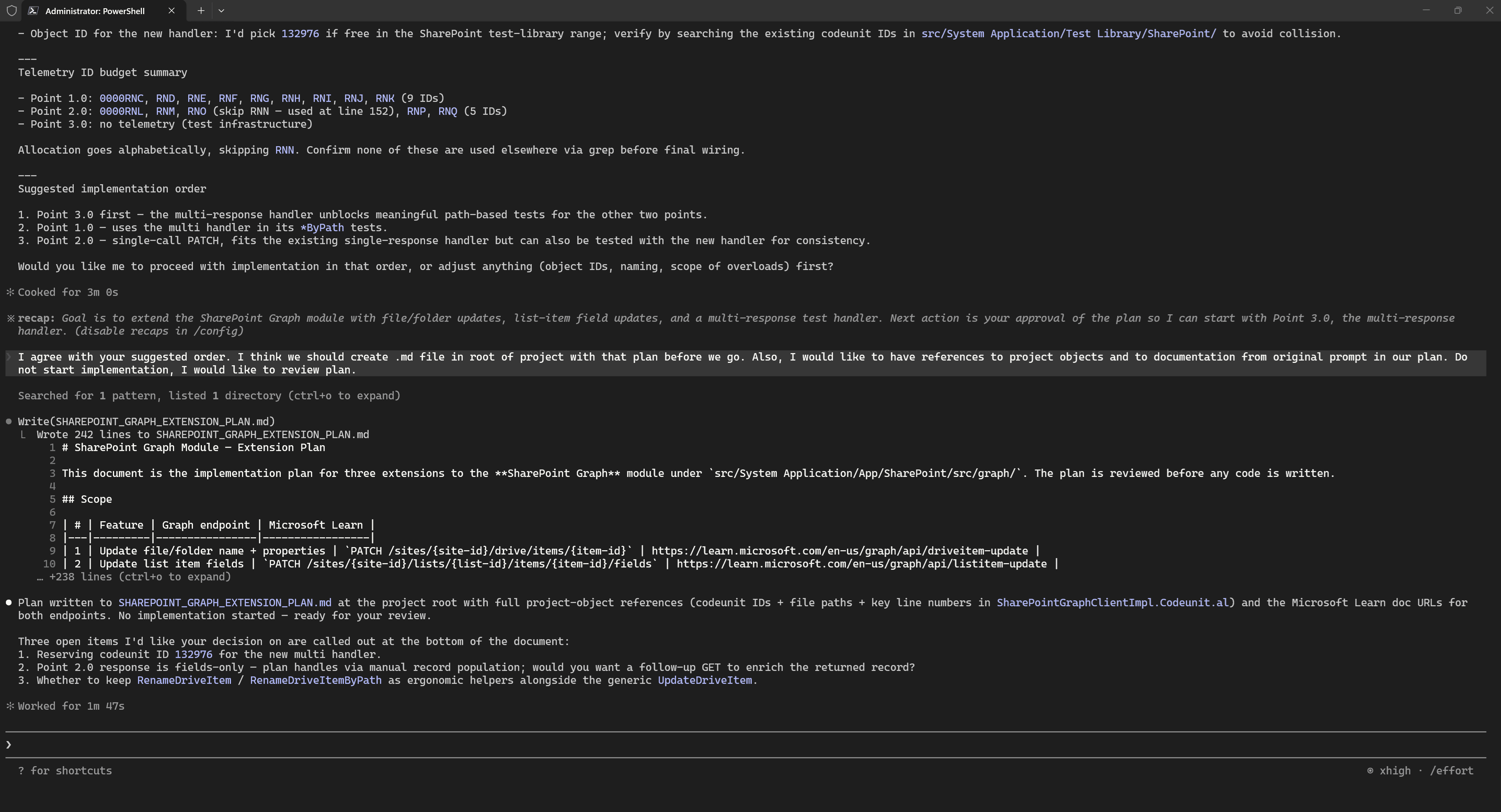
But even a quick look in the terminal was enough for me to notice that the plan did not include links to specific objects from the codebase, so I simply asked the agent to add them:
And then I moved on to a full plan review in VS Code:
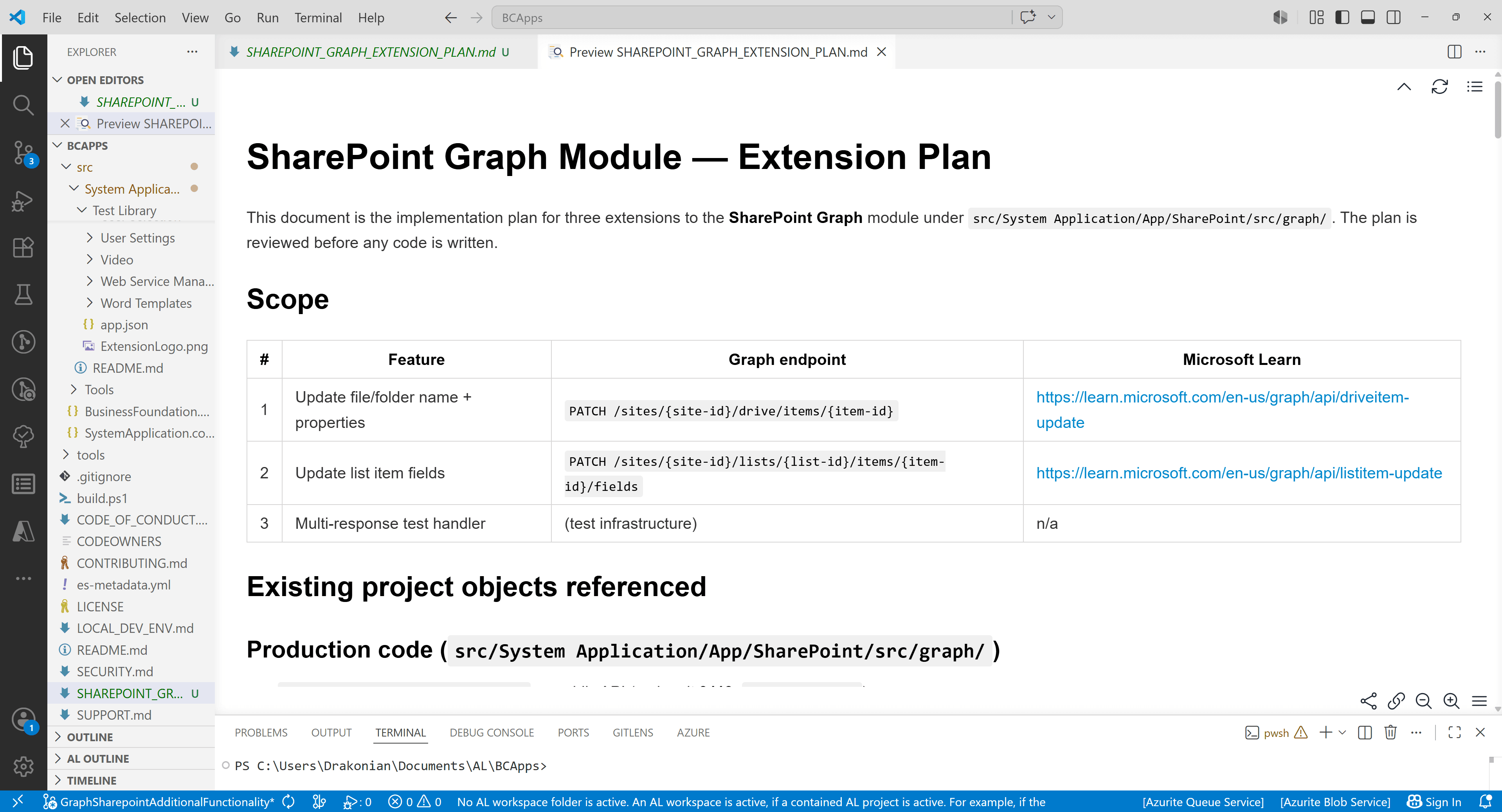
And of course, there were several things that needed to be corrected. For example, the Telemetry ID should be empty, because this identifier is assigned by Microsoft. The agent could not have known this because I did not provide with the necessary context, since I did not remember it when writing the prompt. In general, this kind of rule can be moved to CLAUDE.md or AGENTS.md, because it is valid for any new code in the BCApps repository.
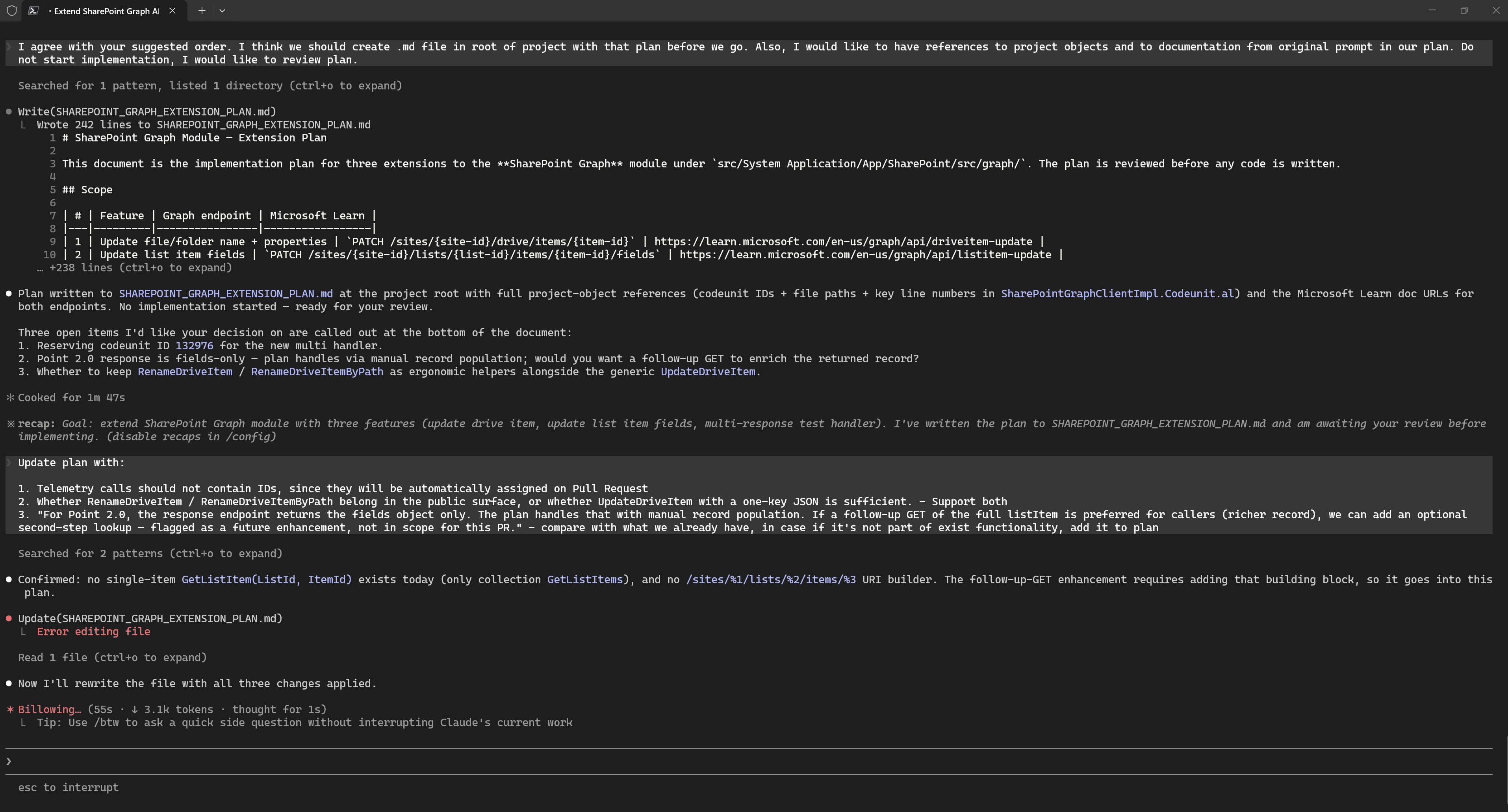
This process of reviewing and improving the plan can continue iteratively.
For example, while reviewing the plan more carefully one more time, I noticed that the model suggested creating a new Http Client Handler. However, there was no need for that, because the existing one could simply be reworked. This would not break backward compatibility, and in any case, it is a test object.
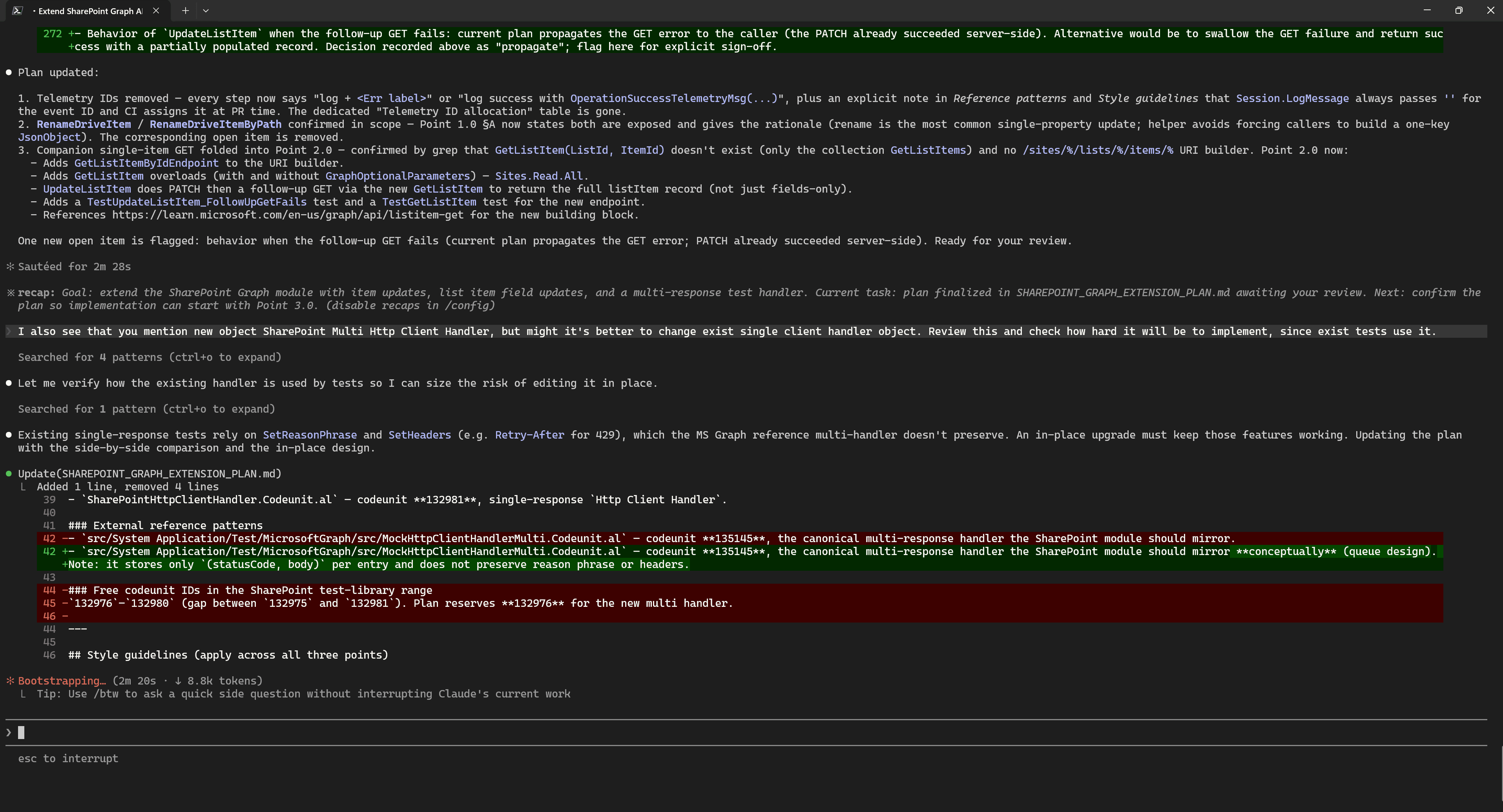
After several iterations, I was satisfied with the resulting implementation plan.
However, the context had already grown to around 200k tokens, so it no longer made sense to continue in the same session. Because in my experience, I notice a regression in quality after around 200k tokens. At this point, you can either start a new session or run /compact in the current one.
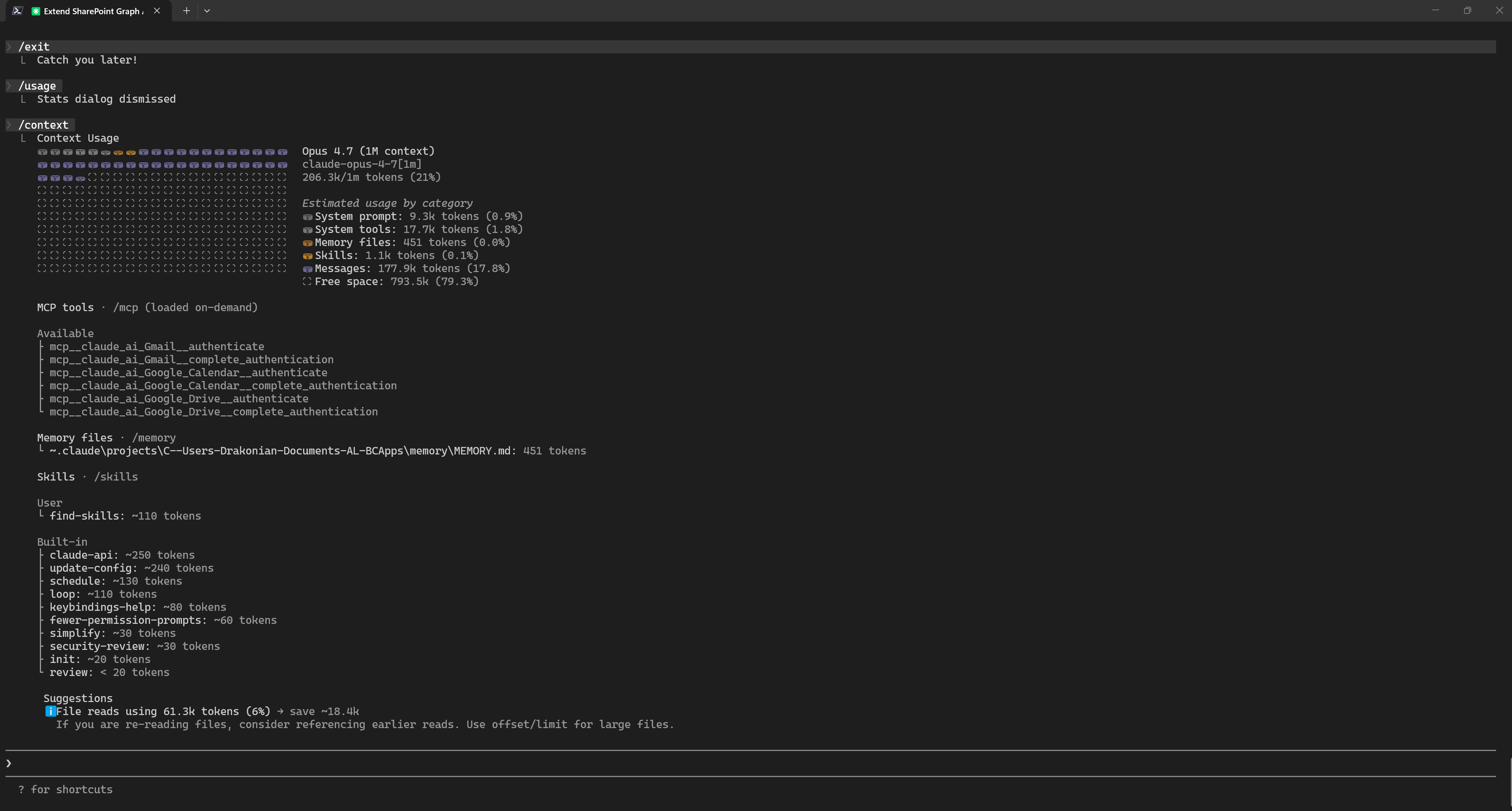
Implementation
For the implementation stage, I saved the original prompt and the implementation plan into separate files. This allows me to provide the necessary context to the AI agent in a new session. I only needed to reference these files using @ and ask it to start implementing the first phase.
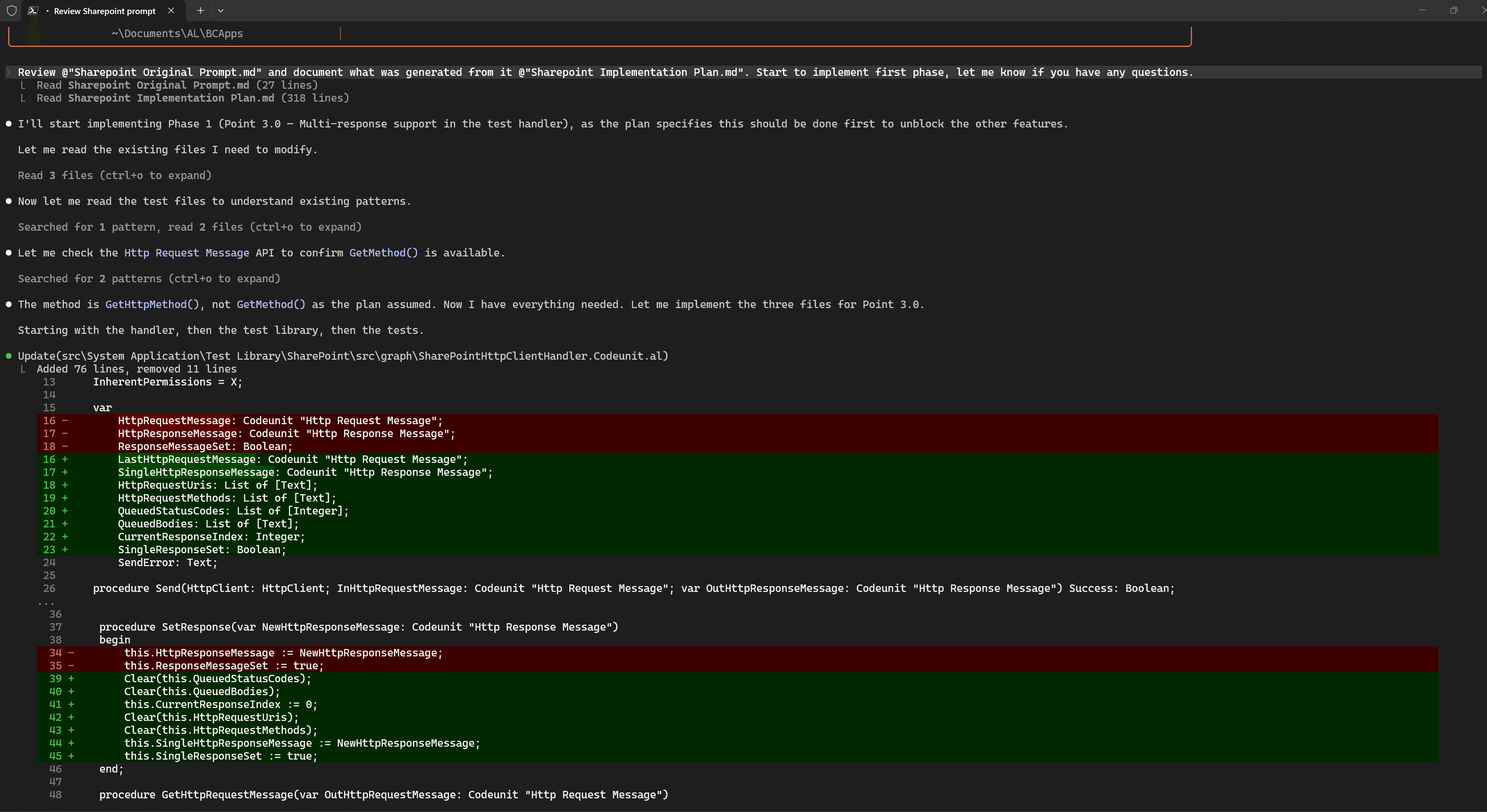
During the implementation process, the AI agent proactively invoked the Skill for compilation on its own, even though I did not explicitly ask it to do so.
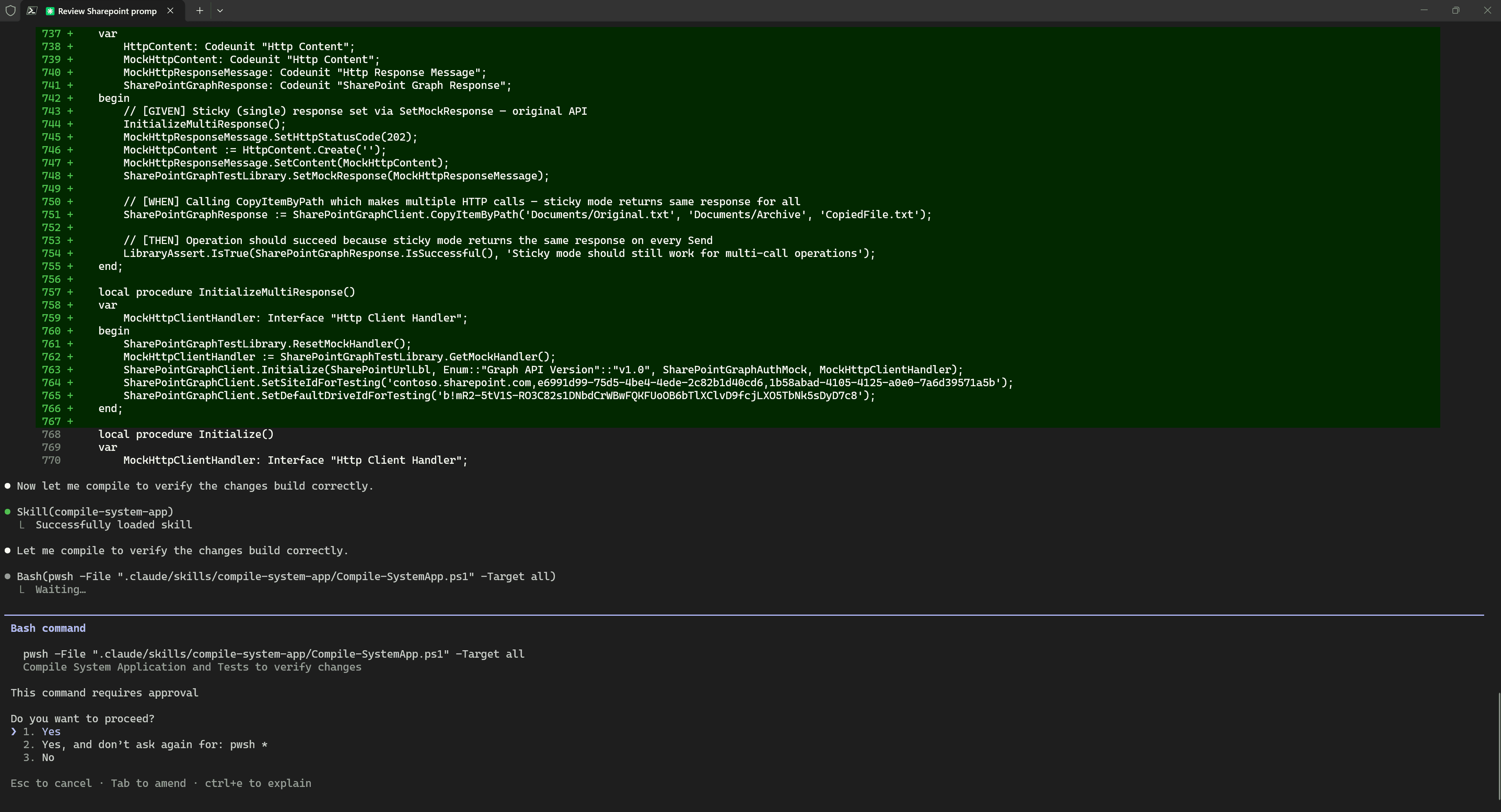
The reason is that the description of this Skill explicitly says that it should be invoked after code changes. This works automatically because the names and descriptions of Skills are passed into the context on every LLM call, and the model decides on its own whether it needs to invoke one.
I prepared both of these Skills in separate sessions and had not tested them in real-world usage. So, naturally, I ran into some errors. I interrupted the process with Ctrl + C to investigate the cause.
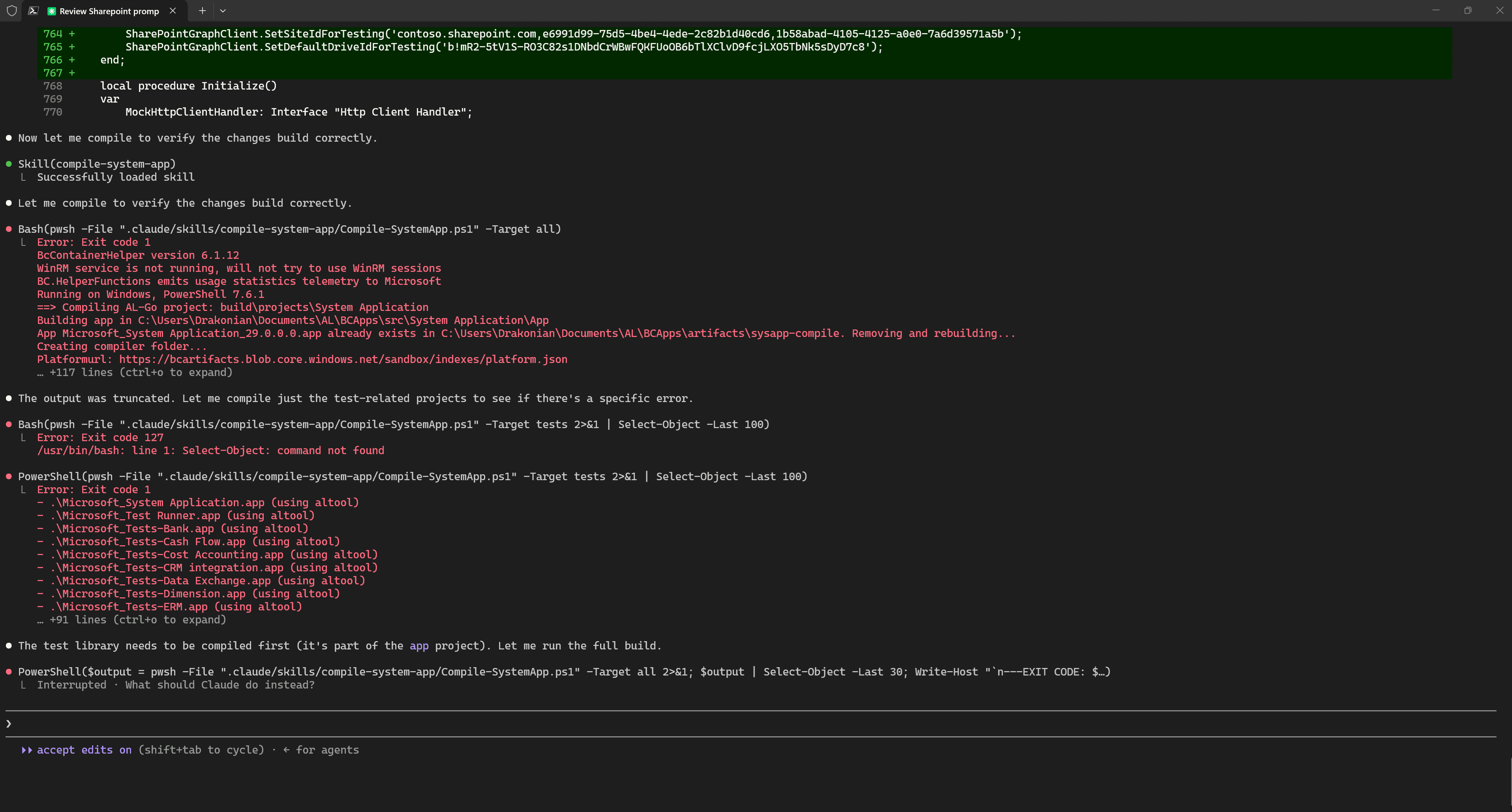
And of course, I also used Claude Code to fix the problem with the Skill scripts.
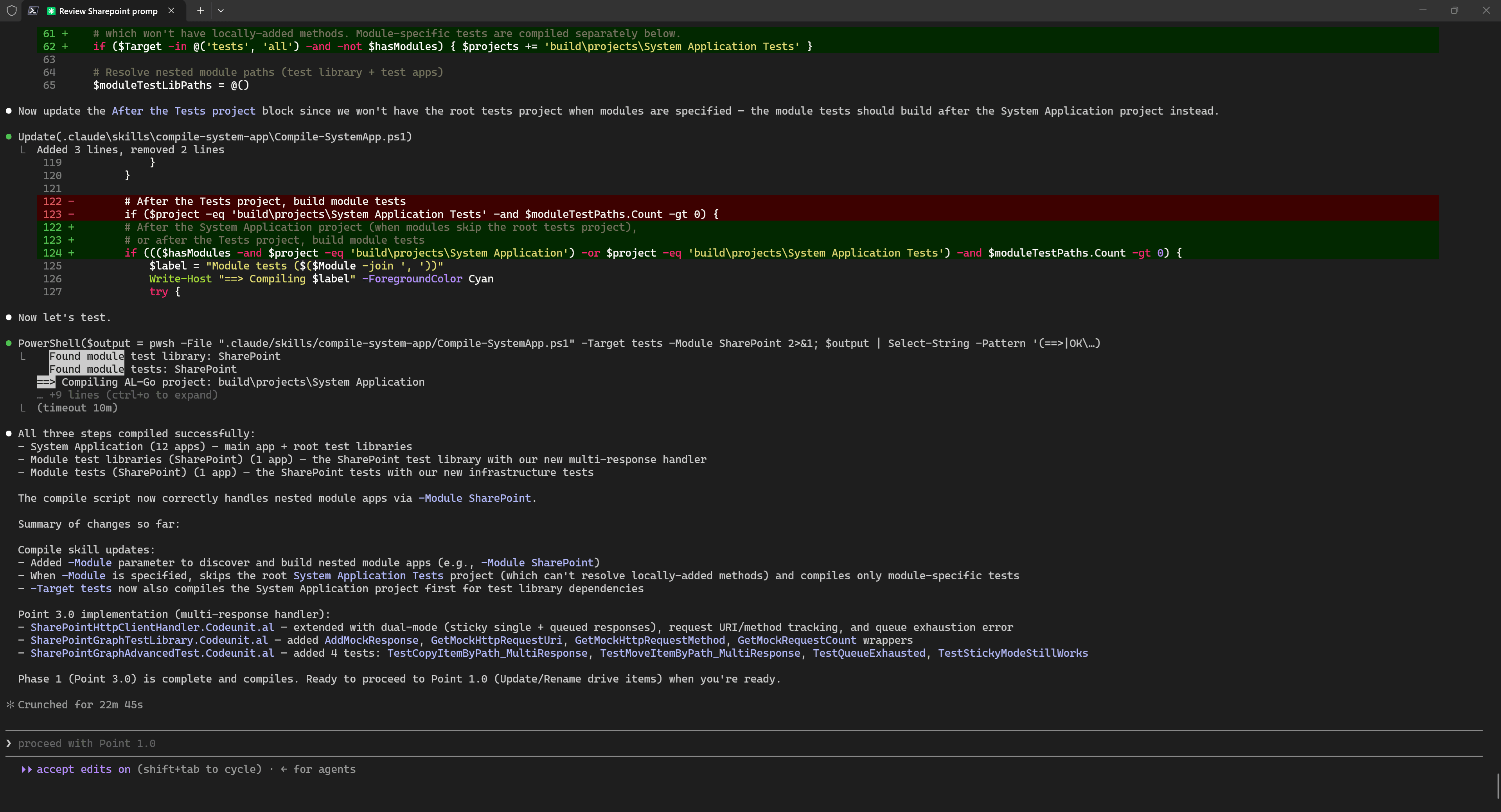
The main message and idea here is this:
Use AI agents to create tools that solve your problems. Focus not only on solving the task itself, but also on building tools that will help you solve similar tasks in the future. Do not hesitate to use LLMs even for one-off tools, it is genuinely convenient.
In my example, proactive Skills for compilation and running tests significantly improved the quality of the result and the agent’s speed.
Automated testing
Let us return to the implementation of the first phase. As you may have noticed, we slightly moved away from the actual task in the conversation with the agent and switched to fixing the Skills. All of this takes up space in the context.
The solution is quite simple: pressing Esc twice in Claude Code allows us to roll back the conversation to a specific point. You can roll back only the conversation, only the code, or both together. In my case, it was convenient to roll back the conversation but keep all the code, because those fixes had improved the Skills.
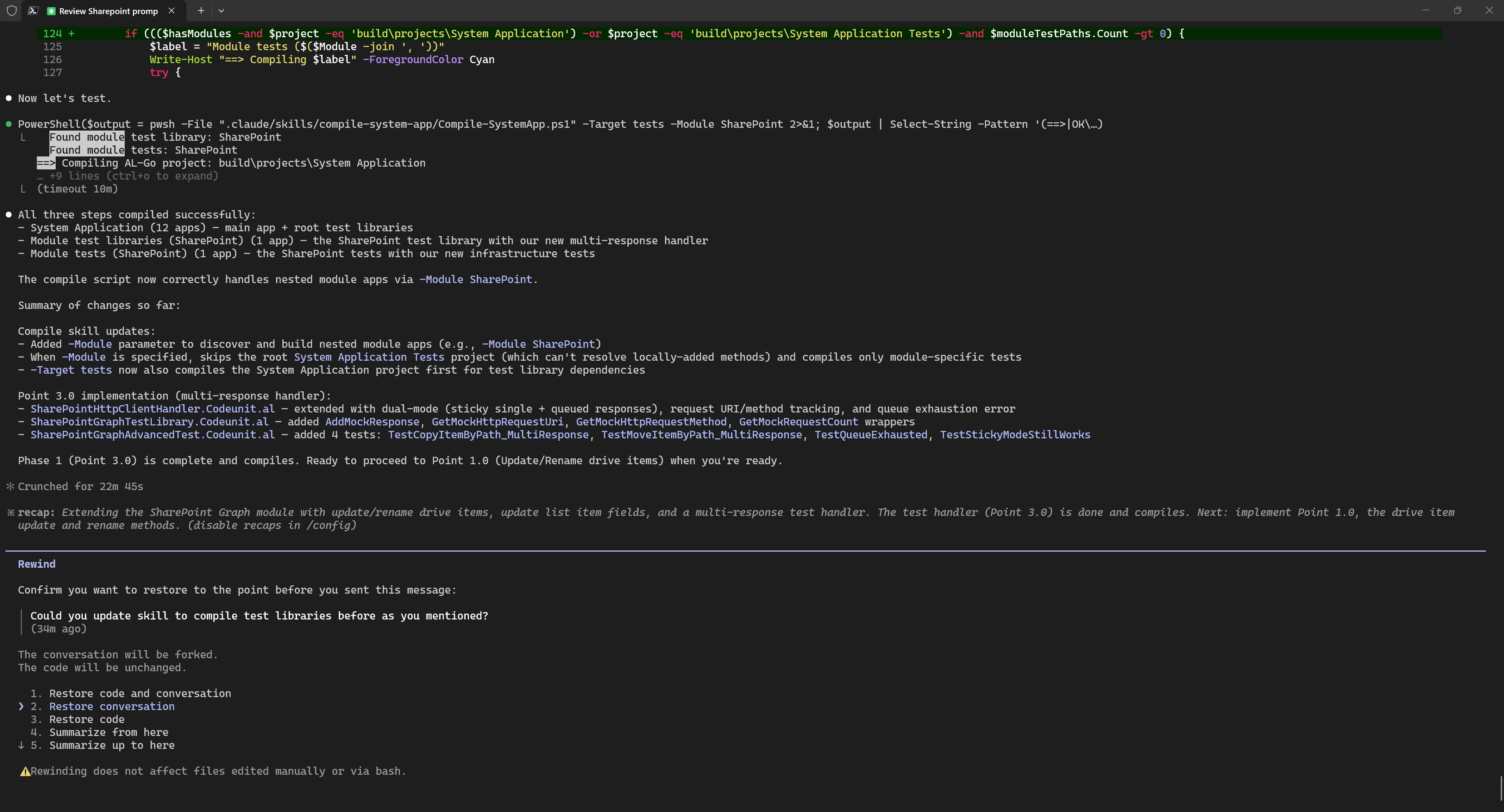
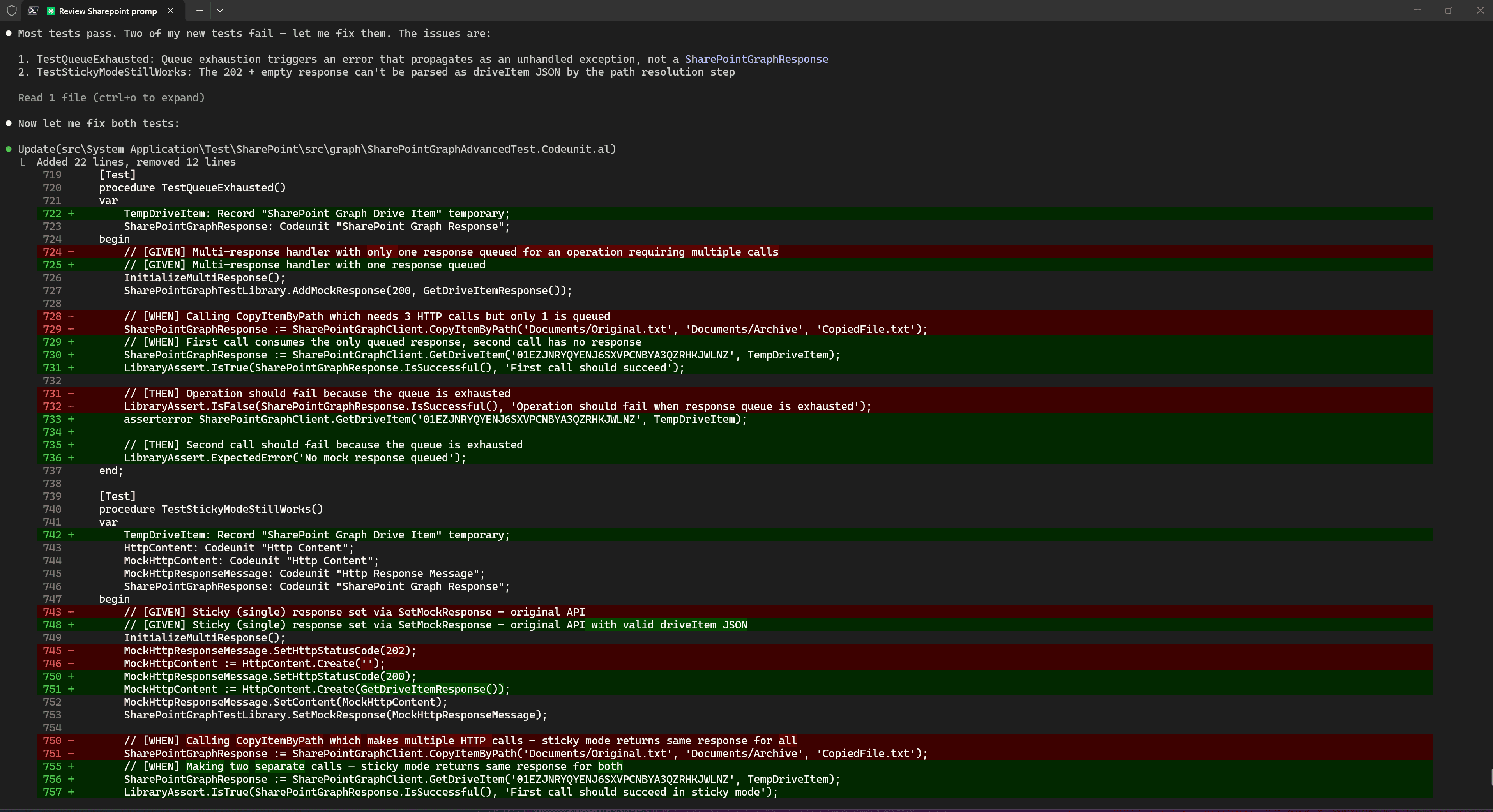
After rolling back to the last conversation point related to the actual task, I simply asked Claude Code to compile the code and run the tests. During this process, Claude Code found issues in its own tests, changed the code, and ran the tests again without my intervention.
Code Review
Before reviewing the code myself, I use agentic code review. It helps find and fix many issues before I even start studying the code manually. I usually do three types of code review.
The first code review is standard and is based on the model’s knowledge and generally accepted coding principles. In most cases, there is no need to provide anything additional for this.
The second code review is based on a specific knowledge base related to the nuances of development for Dynamics 365 Business Central. In example I use fresh knowledge base BCQuality. This is a new knowledge base, it is still under active development, and it is located in the BCQuality repository.
The third is, of course, manual code review.
To use this specific knowledge code review, I just use simple prompt with reference to folder with repository:
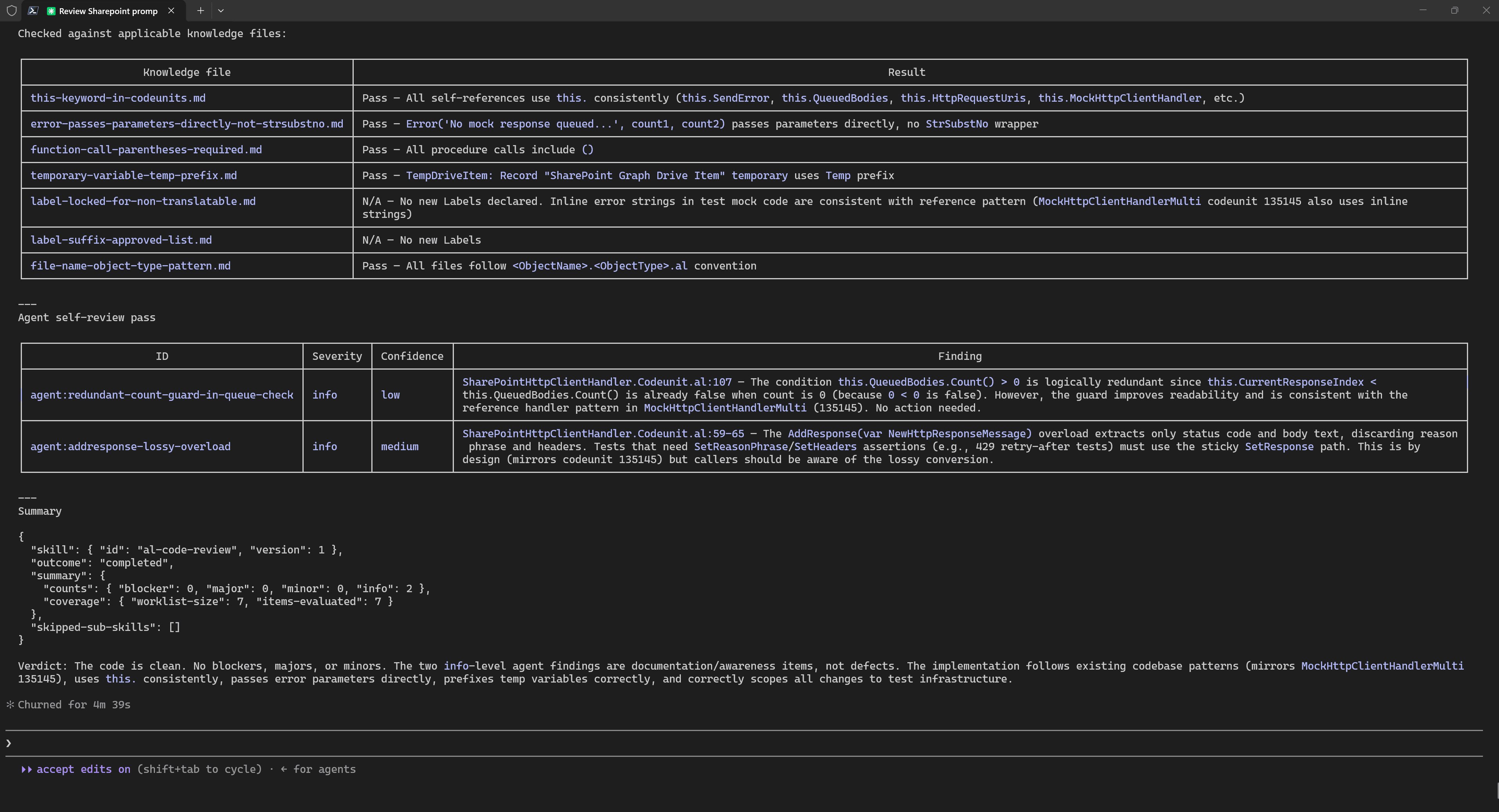
Do additional detailed code review for AL code from finished phase
using the AL code review skill at C:\Users\Drakonian\Documents\AL\BCQuality\microsoft\skills\review\al-code-review.md
Here, you need to review every point provided by the LLM very carefully, because there may be false positives for any type of code reviews.
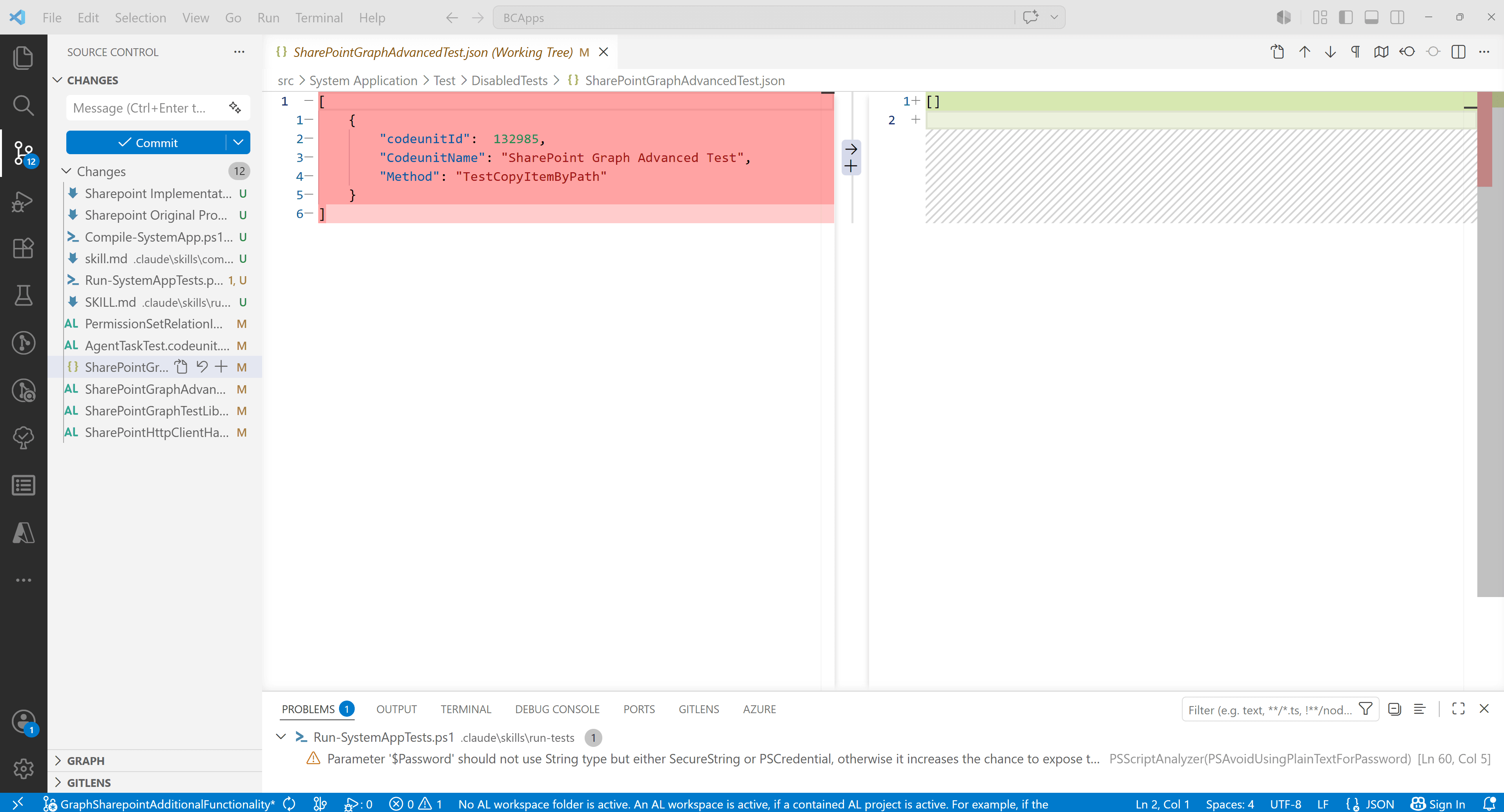
Only after that do I review the code myself. This is much more convenient to do in VS Code using Git changes than directly in the terminal.
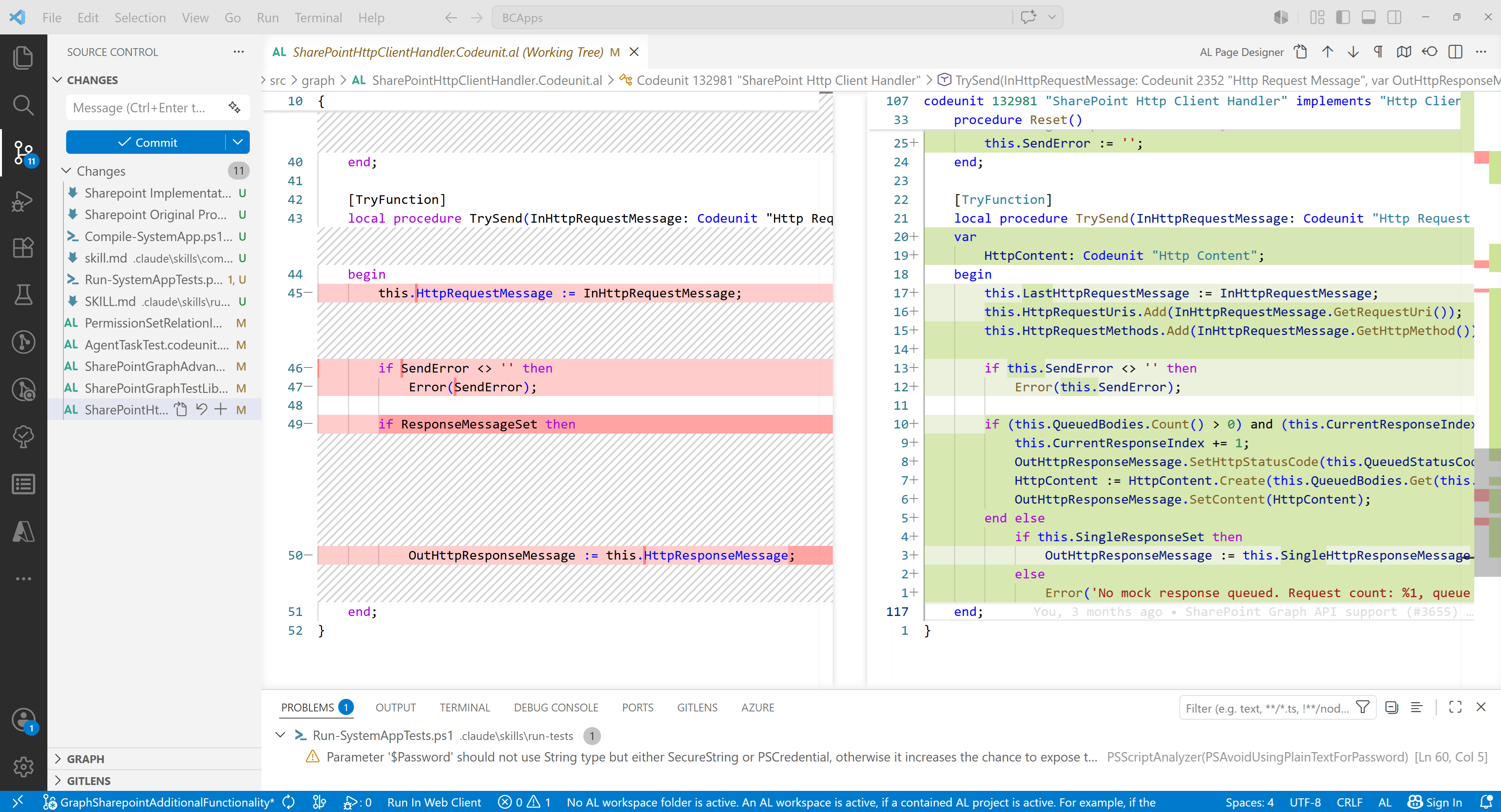
And very often, it is during manual code review that I find things that were done incorrectly, or not quite correctly.
For example, after implementing the first phase, I asked the agent to remove TestCopyItemByPath from the excluded tests. It had been disabled because it specifically required the multi-step HTTP handler.
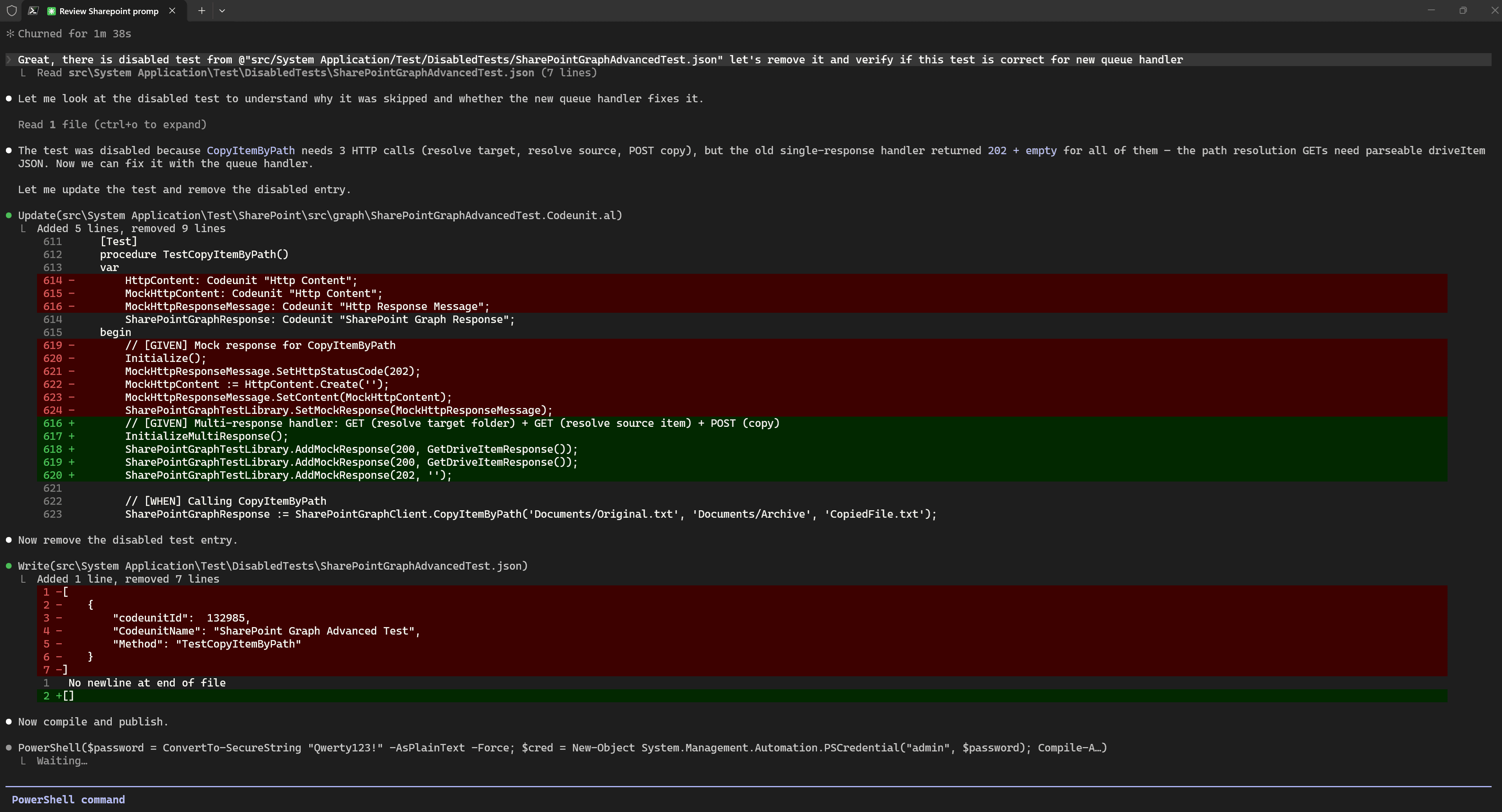
However, I did not notice exactly how it was done.
During manual code review, I immediately saw that instead of completely deleting SharePointGraphAdvancedTest.json, the agent decided to leave it as an empty array. Yes, of course, I did not specify exactly how it should be done, but it is also hard to remember every small detail.
If you look at the folder where these disabledTests files are located, it becomes clear right away: if there are no disabled tests, then the file is not needed.
It is difficult for a human to provide all the necessary context to the agent. There will always be something that was forgotten, too much context, context that was misunderstood by the LLM, or simply missing context. In short, there are many reasons why I am convinced that manual code review is still required.
Manual testing
I strongly believe that automated testing does not replace manual testing, and vice versa. They complement each other, and it is precisely this combination that gives the best result. That is why, for me, this is a mandatory part of the process.
This is especially important when you work with APIs or use any kind of mocks. Real environment does not have these mocks. Real environment can accumulate various combinations of states that are not reproduced by automated testing, and so on.
Continue implementation
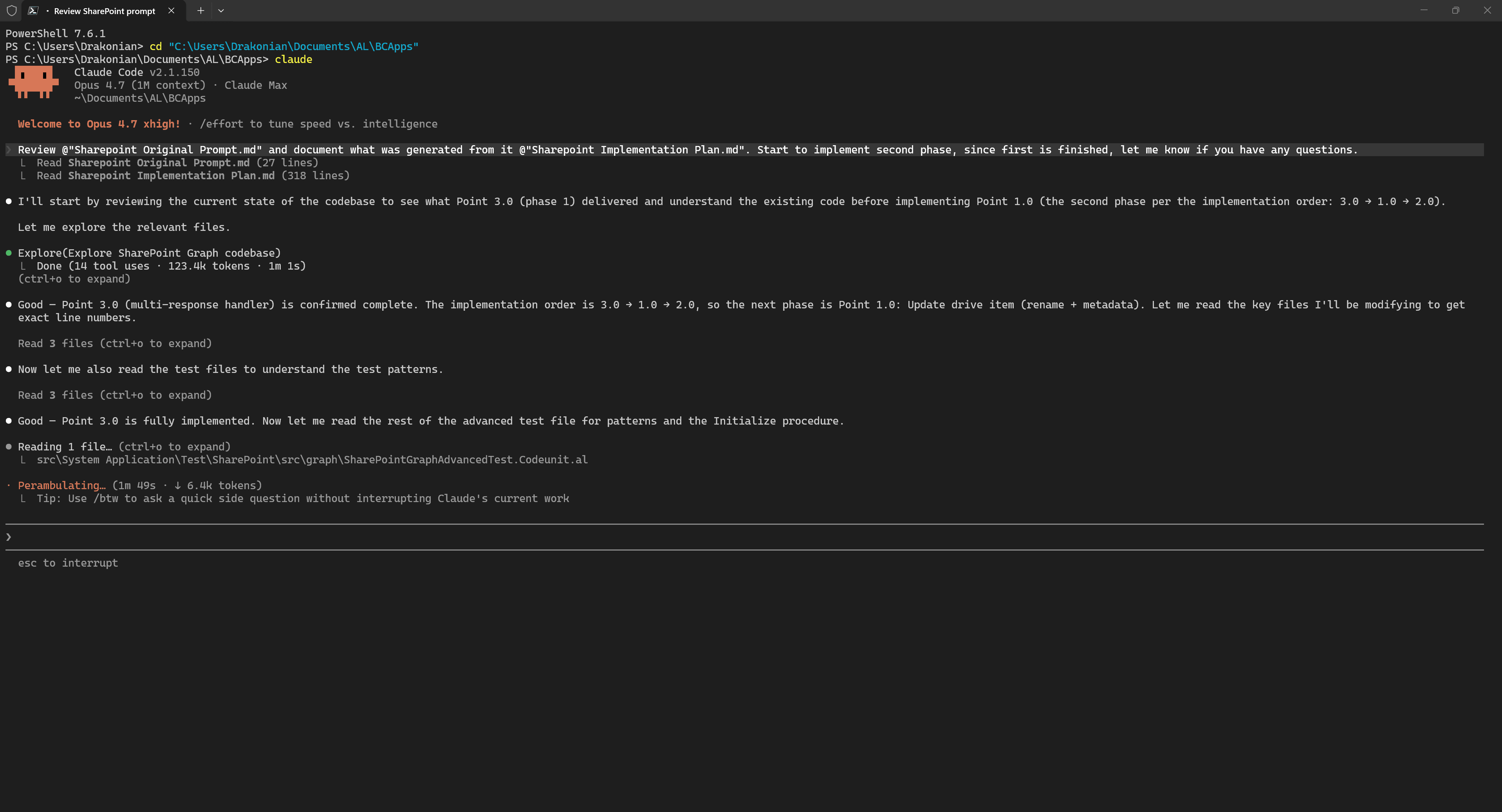
After that, we can move on to implementing the next phase. The essence of the process is exactly the same. We start a new session, reference our original prompt and implementation plan, and ask the agent to start implementing the next phase.
Documentation
After completing the implementation, code review, and testing of all parts of the task, we can move on to documentation. This can be very different depending on the requirements or methodology used in your project. In my case, all public interfaces already contain XML documentation, so I only need to create descriptions for the Pull Request.
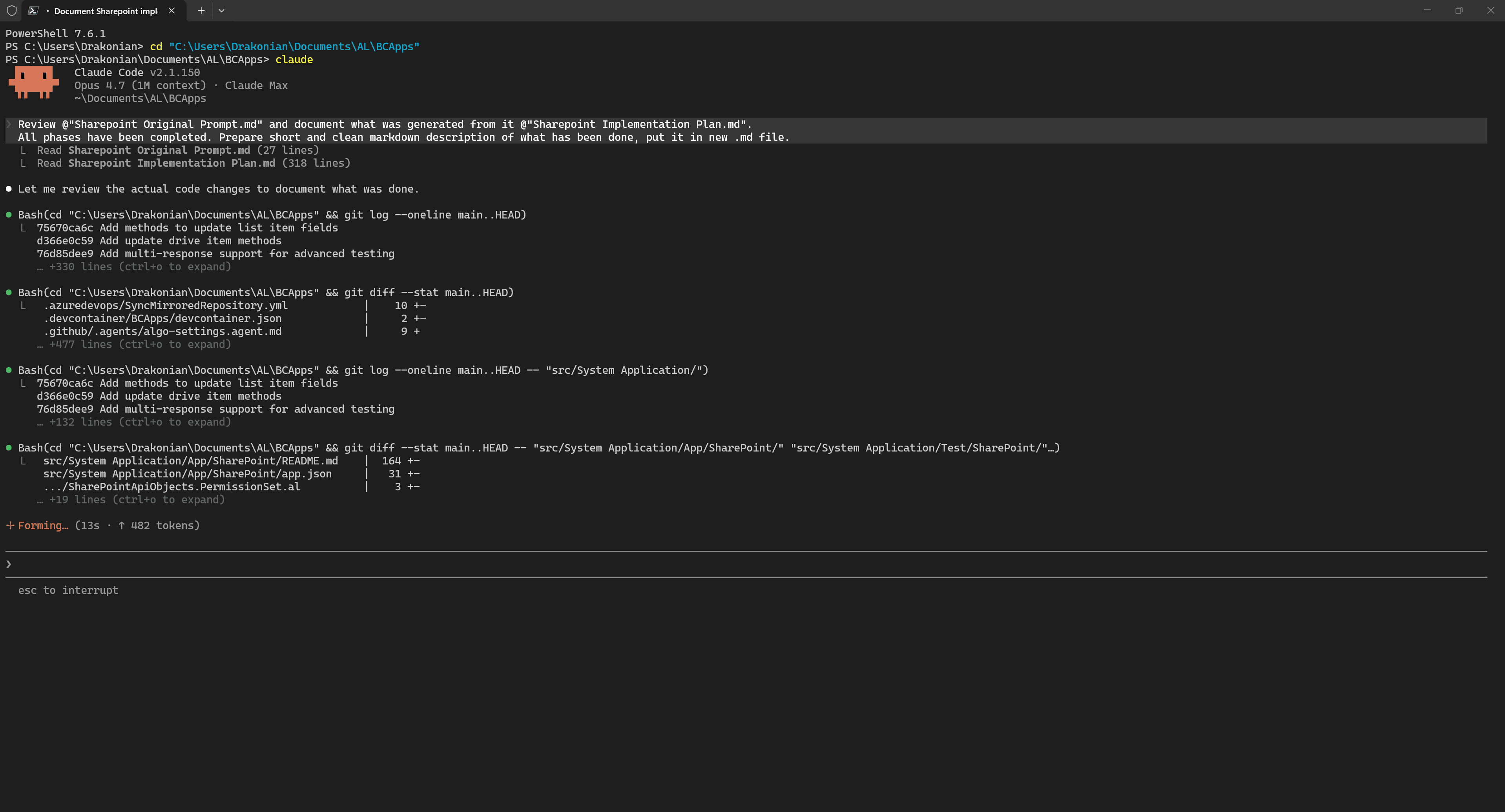
To do this, in a new session, I reference the implementation plan and the original prompt, and ask the agent to review the modifications that were made.
As you can see, the agent is perfectly capable of comparing changes between your branch and main.
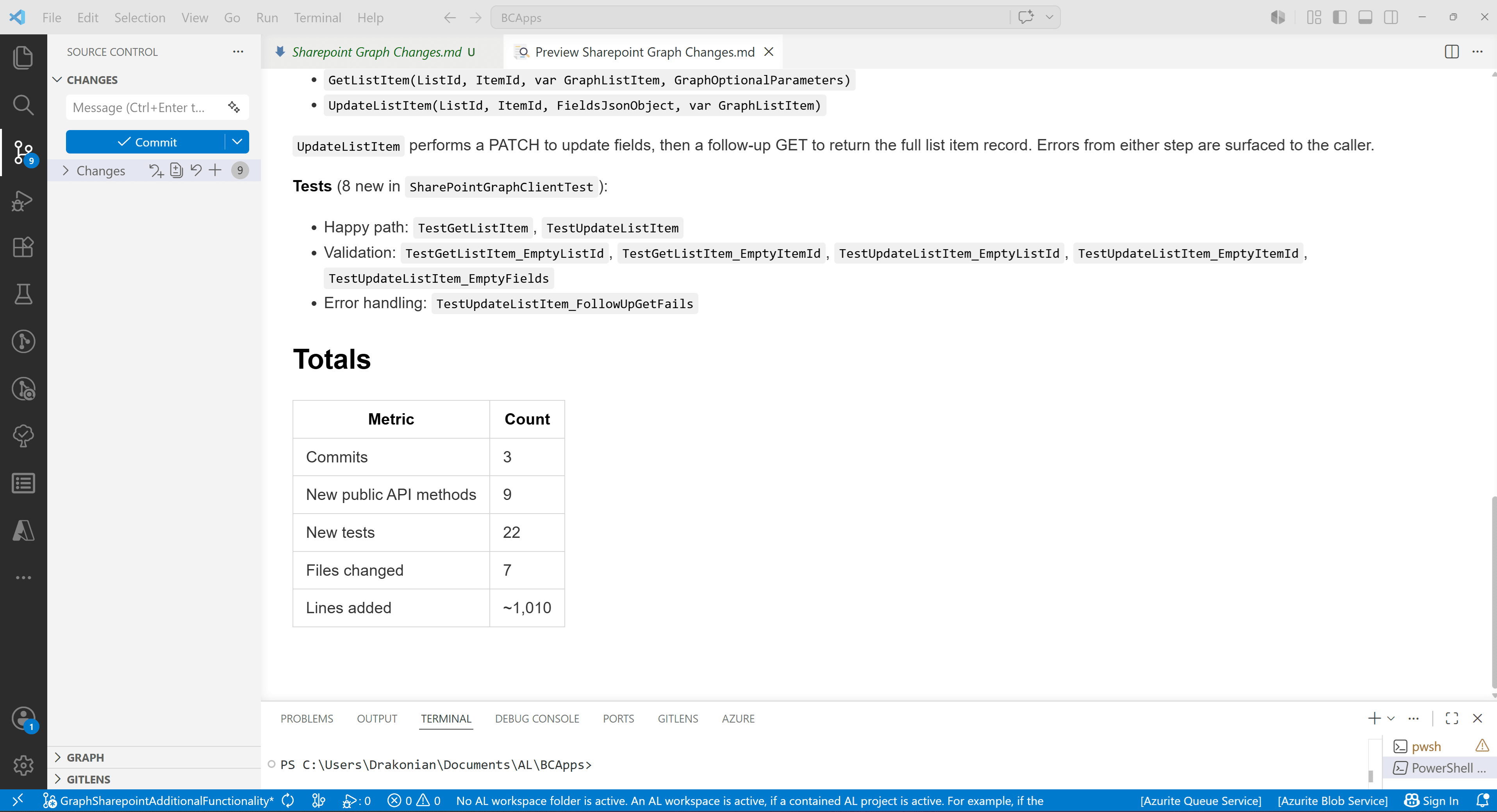
And of course, the documentation itself should still be reviewed.
LLMs often add things that are not really needed. For example, in one of the iterations, the model decided to add a Totals section with counts of commits, methods, tests, and so on.
Summary
Let us try to summarize some of the results. First, I suggest looking at a diagram of how I approached solving this task with the help of an AI agent.
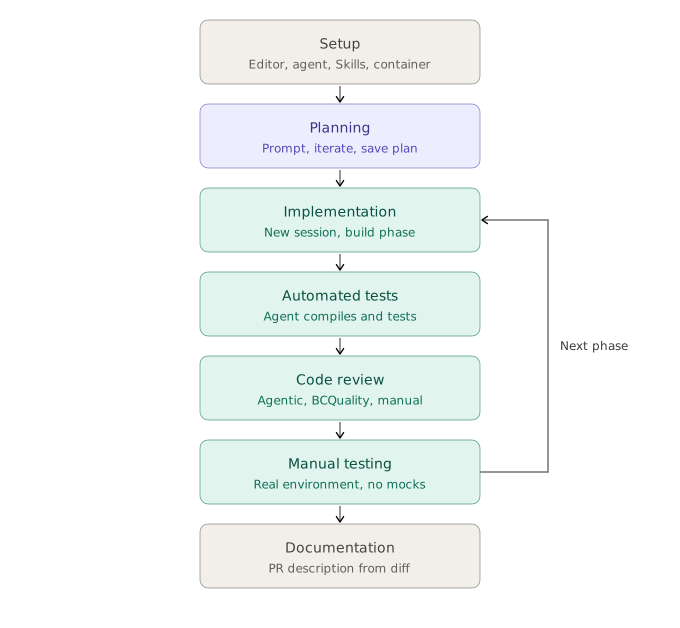
As you can see, there is nothing complicated here.
I also suggest reviewing the main ideas from the article: Here are the key points from the article:
- Symbiosis over automation. Most code is now LLM-generated, but every line still gets reviewed. The value of AI agents comes from pairing them with human judgment, not from removing the human.
- Terminal agent and VS Code work in tandem. Claude Code handles generation, compilation, and test runs from the terminal. VS Code is where you read the result — Markdown Preview for the plan, Git diff view for code review, AL Language for LSP and linting. The whole workflow is a rhythm of switching between the two: agent produces, editor verifies.
- Start large tasks with planning. Get the agent to produce a detailed plan as a Markdown file, then review and refine it in VS Code before writing any code. Iterate until the plan is right, it's much cheaper to fix at this stage.
- Prompts: short, specific, with
@references. Point to concrete objects in the codebase, link the relevant docs, give an example of how a similar problem was solved. Don't try to spell everything out in prose. - Save the prompt and the plan to files. Context windows fill up (~200k tokens is the practical ceiling). Persisting these as files means a new session can
@-reference them and pick up exactly where you left off. - Use the agent to build your own tools. Skills with auto-invocation (compile, run tests) dramatically improve the feedback loop. Even one-off helper scripts are worth building when an agent can write them in minutes.
Esc Escis your safety net. Rolls the conversation back to any earlier point, optionally keeping the code as-is. Lets you sidetrack to fix something else, then return to the actual task without polluting context.- Three layers of code review. Generic agentic review → domain-specific knowledge-base review (e.g. BCQuality for BC/AL) → human review of the Git diff in VS Code. Each layer catches things the others miss, and manual review is still where the subtle issues surface.
- Manual testing doesn't go away. Automated tests run against mocks, production accumulates state combinations that no mock reproduces. Mandatory step before considering a phase done.
- KISS Keep it simple, you don't need thousands of skills or multi-million lines of prompts to achieve good result with LLMs.
Source Code
As a result of working with the agent, I created a Pull Request to Microsoft so that these changes can become part of Dynamics 365 Business Central:
https://github.com/microsoft/BCApps/pull/8318
I also prepared a repository that contains the agentic Skills from the examples, the original prompt, the implementation plan, and the PR description.